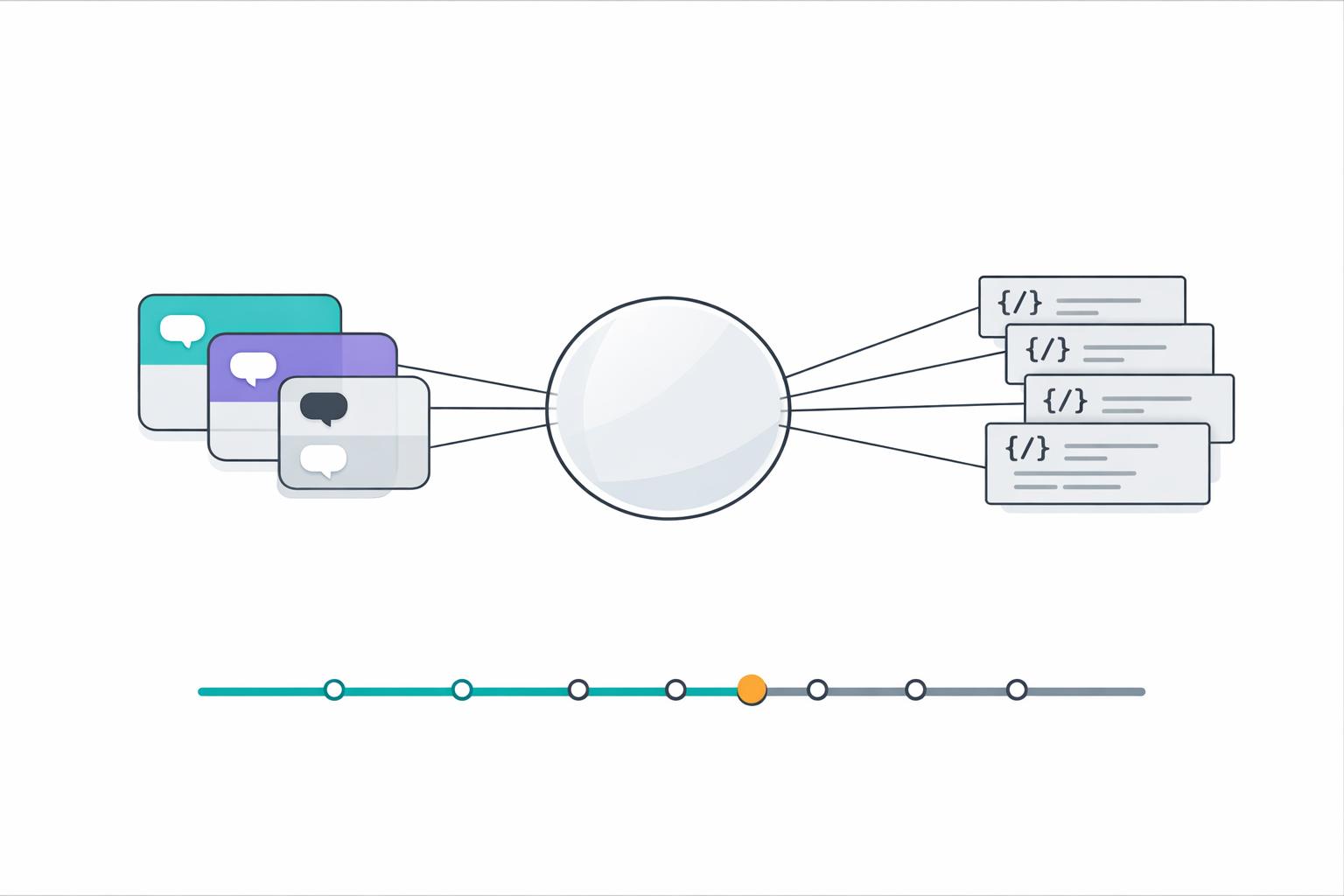
How to Integrate Code Documentation with Team Chats
How to Integrate Code Documentation with Team Chats
Struggling to find answers buried in Slack threads or outdated wikis? Integrating your team’s code documentation directly into chat platforms like Slack and Microsoft Teams can save time, improve collaboration, and reduce confusion. Here's how it works:
- Why It Matters: Teams lose over 20% of productivity to scattered knowledge. Integrating documentation into chats cuts down on wasted time and ensures up-to-date information is always accessible.
- Key Benefits: Faster onboarding (from weeks to days), fewer repetitive questions, and streamlined communication with real-time updates.
- How It Works: Tools like Knowledge Plane link your codebase, documentation, and chat platforms into a single, searchable knowledge graph. Real-time updates ensure accuracy, while AI-powered features simplify troubleshooting and decision-making.
- Setup Steps:
- Enroll in Knowledge Plane’s beta program.
- Configure your workspace with access controls and automated updates.
- Connect tools like GitHub, Slack, and wikis for seamless integration.
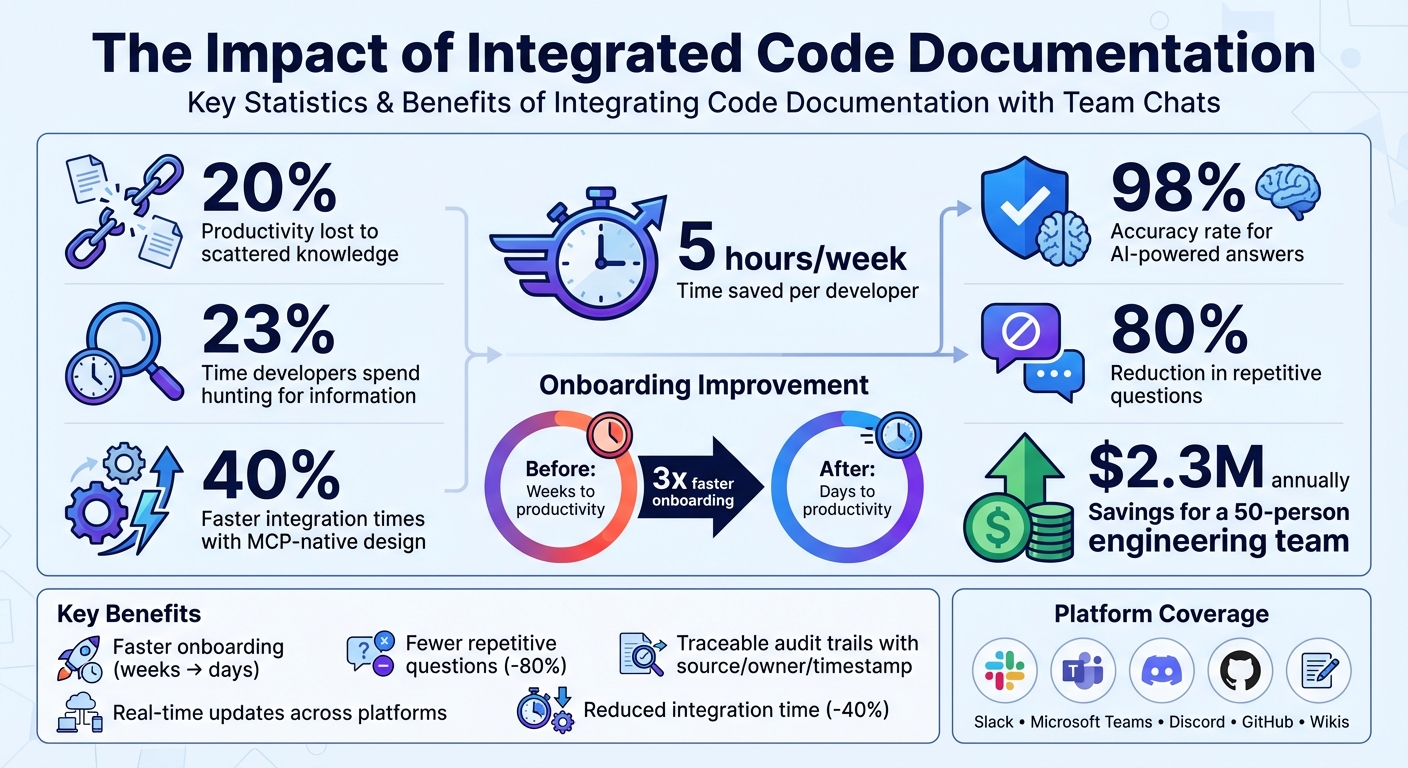
Code Documentation Integration Benefits: Productivity Statistics and ROI
Getting Started: What You Need Before Integration
Before you can integrate code documentation into your team chats, you’ll need to set up Knowledge Plane and link it to your existing tools. Unlike systems that store static files, Knowledge Plane organizes atomic facts and relationships into a dynamic knowledge graph. Taking the time to prepare properly will make the integration process much smoother.
The first step is enrolling in the private beta. To apply, you’ll need to use a work email address. Applications are reviewed in batches, so signing up early with a professional email can give you priority for the next onboarding cohort. Once approved, you’ll go through a guided onboarding session to configure your environment. During this setup, you’ll decide between a managed cloud deployment - ideal for quick implementation - or a self-hosted model, which is better suited for organizations that need full control over data and compliance. This setup lays the groundwork for shifting your team from isolated documentation to integrated, real-time updates.
Set Up Knowledge Plane for Your Team
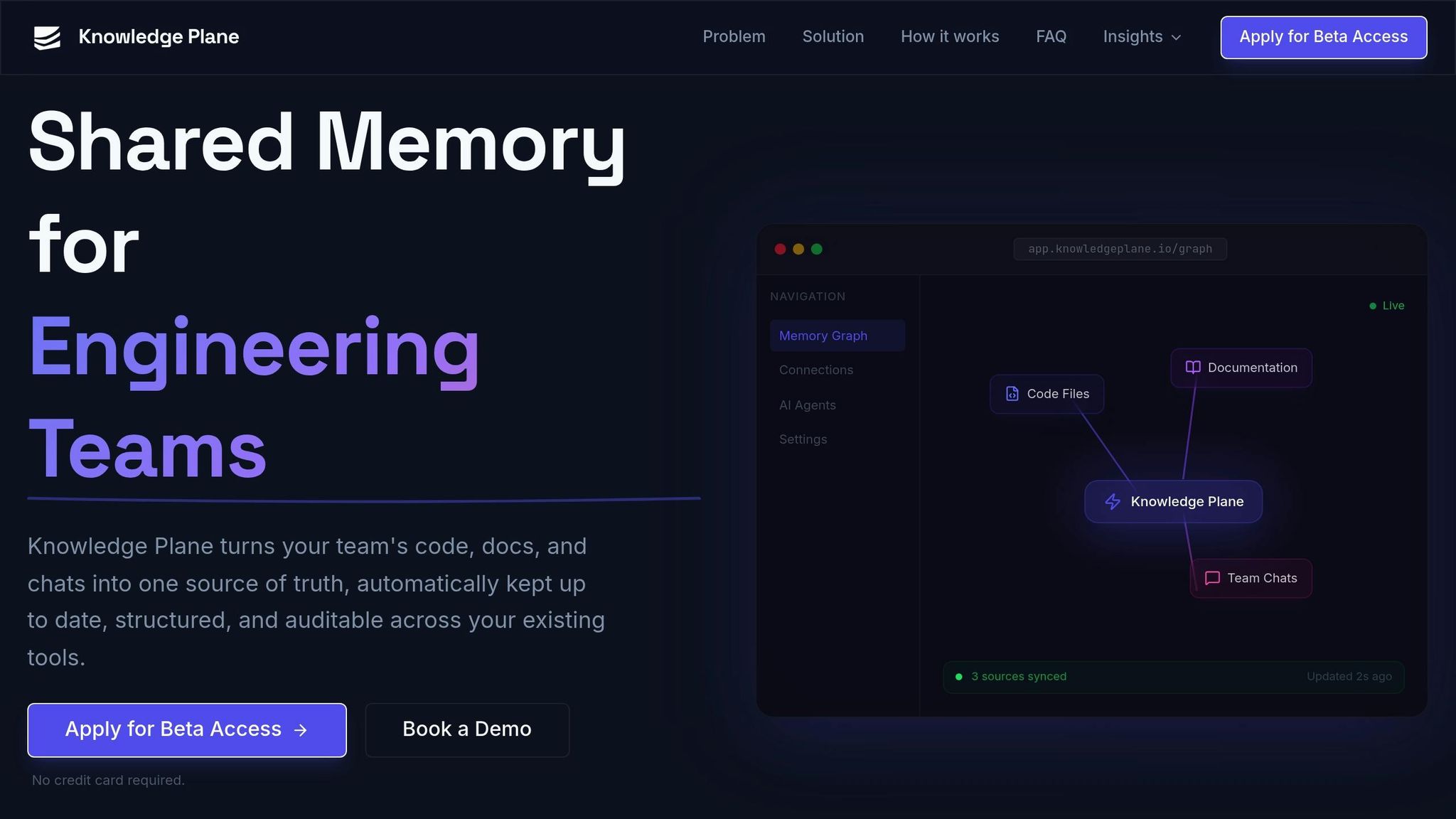
Once you’ve been approved, the next step is configuring isolated workspaces with strict access controls. This is where you’ll organize your team’s knowledge and manage permissions. Every query, update, and write action is logged with a source, owner, and timestamp, providing a traceable audit trail. Scoped API keys allow both AI agents and team members to access only the specific knowledge domains they’re authorized for. This structured setup ensures that documentation updates flow seamlessly into your chat platforms, enabling real-time collaboration.
"Knowledge Plane extracts atomic facts and relationships from your sources - it doesn't store raw copies of your files. The original documents stay where they are." - Knowledge Plane
A critical part of this phase involves setting up "Skills." These are scheduled jobs that automatically fetch and reconcile knowledge, ensuring there’s no drift between your original sources and the stored memory. For instance, if your team frequently updates API documentation, you can configure a Skill to sync changes from your GitHub repository regularly. This ensures that the AI always provides the most up-to-date information.
Connect Your Existing Tools
After setting up your workspaces, the next step is connecting your existing development tools. Knowledge Plane integrates seamlessly with your infrastructure - whether it’s code repositories like GitHub, documentation sources like wikis or PDFs, or team chat platforms such as Slack. Make sure you have admin access to grant Knowledge Plane the necessary permissions to build your knowledge graph.
The system is MCP-native, meaning it connects with AI agents and services through standardized APIs. This design can reduce integration times by up to 40% compared to older methods. When linking chat platforms, it’s important to define a default repository. This ensures the AI has a clear primary context when responding to questions in tools like Slack - so if someone asks about a specific function, the AI knows which codebase to reference.
No credit card is required for the beta. Official pricing will be announced later, and early participants will have the opportunity to influence the pricing structure.
sbb-itb-1218984
Step-by-Step: How to Integrate Code Documentation with Team Chats
Once your workspace is set up, the next step is to connect your repositories, documentation, and team chats into a single, continuously updated knowledge graph. This ensures real-time links between your codebase and conversations, making collaboration smoother.
Configure Shared Memory in Knowledge Plane
Start by linking your code repositories, documentation sources, and team chats. The system will then generate structured knowledge cards, such as "Service A depends on Service B", to map out dependencies and ownership.
"Knowledge Plane combines graph memory (typed relationships like 'Service A depends on Service B') with vector embeddings. This means your agents can reason about dependencies, ownership, and timelines - not just match keywords."
This shared memory allows AI agents to grasp context far beyond simple keyword searches. For example, if someone asks about a specific function in Slack, the AI can trace the decision-making chain and related dependencies. Each knowledge item is tagged with its source, owner, and timestamp, ensuring traceability and accuracy.
With shared memory configured, the next step is to automate documentation updates to keep everything aligned.
Enable Automatic Documentation Updates
Once shared memory is in place, activate Skills to handle real-time updates. Skills are background jobs that automatically detect and reconcile changes between your original sources and the knowledge base. For instance, if API documentation is updated in GitHub, Skills will sync those changes without requiring manual input.
"Skills are scheduled jobs that automatically fetch, reconcile, and update your knowledge base. Instead of manually re-uploading docs when things change, skills detect drift between your sources and the stored knowledge, then update facts accordingly."
You can monitor these updates through the Knowledge Plane dashboard. Indicators like "Updated 2s ago" confirm that the system is functioning as intended. This ensures your AI agents always work with the latest documentation, providing accurate and up-to-date responses.
Integrate Documentation with Slack, Teams, and Discord
With automatic updates enabled, you can embed your synchronized documentation directly into chat platforms for seamless context-sharing. The system, built on the Model Context Protocol (MCP), integrates with Slack, Microsoft Teams, and Discord using standardized APIs.
For Slack, you can enable "Thread Sync" to ensure ongoing conversations automatically reflect in your documentation and work items. Use message shortcuts - hover over a message and select "Create a Work Item" or "Link Work Item" - to connect chat discussions to shared memory instantly. Remember to manually add the integration bot to private channels via the "Integrations" tab; otherwise, the AI won’t be able to access or update documentation from those discussions.
For Microsoft Teams and Discord, authorize the Knowledge Plane bot, set your default repository to guide the AI to the correct codebase, and configure which channels have access to documentation queries. Test the setup with commands like /doc360 search to link articles into conversations and confirm the AI is retrieving the most recent data.
Testing and Auditing Your Integration
Once integration is complete, thorough testing and auditing are critical to ensure the system consistently delivers accurate and relevant information. Start by confirming that the AI retrieves precise, contextually appropriate data. For example, test how it handles follow-up questions in threaded conversations. A well-integrated AI should refine vague queries like "what about the API?" into more specific searches, such as "authentication system API implementation", by analyzing the context of the conversation.
"The difference in search quality between 'what about the API?' and 'authentication system API implementation' is the difference between useless and useful results." - Airweave Case Study
Additionally, verify that every AI response includes direct source links - whether from GitHub, Notion, or Linear - so team members can manually confirm the information. The AI should adjust its phrasing depending on the source, such as framing GitHub results as "implemented in" and Notion results as "documented in".
Test AI Agent Reasoning and Context Retrieval
Leverage Knowledge Plane's testing tools to inspect raw data before it undergoes final processing. Ensure the system's confidence grading mechanism flags low-confidence results rather than presenting uncertain information as definitive. Tailor queries by role to confirm the AI retrieves contextually appropriate data - for instance, developers might request "architecture overviews", while project managers may ask for "deployment steps".
In active Slack channels, check that the bot monitors for new human replies before posting. If a teammate responds while the AI is processing, the system should adapt its reply to fill in any gaps instead of duplicating information. Also, ensure the AI removes any special formatting from queries before submitting them, as this can lead to irrelevant or unexpected results.
Once the AI's response quality is validated, confirm that every action is logged in the audit trails, providing a fully traceable process.
Review Audit Trails for Traceable Knowledge
Knowledge Plane ensures traceability by tagging each piece of data with its source, owner, and timestamp. Review the audit trail to verify that documentation is accurate and that information flows correctly from repositories into team discussions. Check the workspace index to confirm it’s using the latest updates, avoiding reliance on outdated documentation.
Enable the "Only use specified sources" option to restrict the AI to your provided context. This ensures the AI doesn’t rely on general knowledge and acknowledges when specific information isn’t available, rather than making assumptions.
Compare Integration Methods Across Platforms
Integration methods differ slightly across platforms, but they all aim to provide secure and real-time access to documentation. Here's a breakdown:
| Feature | Slack Integration | Microsoft Teams Integration | Discord Integration |
|---|---|---|---|
| Setup Method | FastAPI app receiving events via webhooks | GitHub app installation and account link | Similar pipeline to Slack (receive, contextualize, search, generate) |
| Real-time Sync | Real-time Search (RTS) API for live data retrieval | Captures full thread context and stores in pull requests | Continuously updated retrieval layer across tools |
| AI Context Depth | High; uses semantic and keyword search with thread history | High; includes context for coding sessions and PRs | High; integrates a single retrieval layer across team tools |
| Security/Access | Short-lived action_token and user-specific access scopes | Enforces GitHub permissions; requires write access for some tasks | Centralized collection IDs and API keys manage access |
These comparisons emphasize secure, real-time data retrieval across platforms.
Finally, test identity mapping on each platform to ensure permission-based filtering works properly. The AI should only access documentation that the requesting user is authorized to view. For Slack, note that the Real-time Search API may restrict results based on channel type (public, private, or Slack Connect) to maintain data security.
Conclusion: Key Takeaways for Successful Integration
Bringing code documentation and team chats together reshapes how engineering teams handle knowledge sharing. Instead of spending 23% of their time hunting for information scattered across repositories, Slack threads, and documentation tools, teams can consolidate everything into one searchable hub. This streamlined approach saves over 5 hours per developer each week and slashes onboarding time by a factor of three - helping new hires contribute meaningfully in just days instead of weeks.
The secret lies in treating documentation as a dynamic resource that evolves with your code. Knowledge Plane’s shared memory system ensures every response is backed by “receipts” like file paths, line numbers, and version details. This eliminates AI hallucinations and achieves a 98% accuracy rate for answers. Companies adopting this method report an 80% drop in repetitive questions, allowing senior developers to focus on more complex tasks.
Make documentation part of your workflow by including it in your “definition of done.” A task isn’t finished until the related documentation is updated. Use dedicated channels like #ask-ai for bot interactions, enable thread context capture for pull requests, and ensure integration respects access controls to keep sensitive data secure.
The benefits are undeniable: for a 50-person engineering team, eliminating fragmented information can save about $2.3 million annually in recovered productivity. By linking your code, documentation, and team chats through Knowledge Plane, you’re not just improving processes - you’re safeguarding your team’s collective knowledge and laying the groundwork for long-term growth.
FAQs
How do I keep chat answers accurate as the code changes?
Keeping chat answers accurate as code evolves can be challenging, but AI-driven tools make it easier. These tools automatically sync documentation with code updates by detecting changes and prompting updates when necessary. When integrated with team communication platforms, they ensure that responses in chats always align with the latest codebase. This not only reduces outdated or incorrect information but also enhances team collaboration by keeping everyone on the same page.
How does access control work in private Slack or Teams channels?
Access control in private Slack and Teams channels is all about keeping content visible only to those who are explicitly added. In Slack, private channels are completely hidden from non-members. Even admins can't see the messages or files unless they become part of the channel. Some Slack plans let admins manage private channels, but this doesn't include access to the content within them. Similarly, in Teams, private channels limit visibility to added members, and administrators set the permissions to control access.
What’s the best way to test and audit the integration after setup?
To ensure the integration works smoothly, focus on verifying that documentation updates sync correctly and remain accessible in the team chat. Combine automated testing - like API or load tests - with manual checks to confirm that code comments and API references are properly synchronized. Regular audits, along with tools such as CI/CD pipelines, can streamline this process by automating validations and flagging outdated or mismatched content for the team to address.